
You’ve been hearing about Linux for years. Your coworkers won’t shut up about it. That hoodie you’ve been eyeing says “Keep Calm and Install Linux” and honestly? It’s starting to feel like a sign. Making the switch from Windows or macOS to Linux is easier than ever — but it still helps to know what you’re getting into. In this guide, we’ll walk you through choosing your first Linux distro, the installation process, and what to expect in your first week as a Linux user.
Why Linux? The Developer’s Operating System
Linux powers 100% of the world’s top 500 supercomputers, runs on the majority of web servers, and is the foundation of Android, Chrome OS, and countless embedded systems. If you write code — or want to understand how the tech you use every day actually works — Linux is non-negotiable. Benefits that actually matter:
- No license fees. Free and open source. Forever.
- Total control. You decide what runs, how it runs, and what it looks like.
- Native development environment. Bash, git, Docker, Python, Node — everything just works.
- Performance. Lightweight by default. Old hardware? Linux will make it sing.
—
Step 1: Choose Your Linux Distro
Not all Linux distributions are created equal — especially for beginners. Here’s a quick breakdown: Ubuntu — The Safe Bet Ubuntu is the most popular Linux distro for a reason. Massive community, tons of tutorials, and a software center that makes installing apps as easy as an app store. If you’ve never touched Linux before, start here. Ubuntu is the Linux equivalent of “the iPhone of Linux” — opinionated, polished, and just works. Linux Mint — Ubuntu’s Friendlier Cousin If Ubuntu feels too different from what you’re used to, Linux Mint looks and feels almost like Windows. Same Ubuntu foundation, but with a traditional desktop layout and zero learning curve. Fedora — For the Technically Curious Fedora gets new features faster and is backed by Red Hat. It’s a bit more cutting-edge, which means occasionally you encounter rough edges — but if you want to learn how Linux actually works under the hood, Fedora teaches you things. Pop!_OS — Made for Developers and Gamers System76 built Pop!_OS specifically for developers. NVIDIA drivers included out of the box, a clean GNOME desktop, and keyboard shortcuts that will feel familiar if you’re coming from macOS. Worth a look if you’re a developer who also games.
Step 2: How to Install Linux (The Right Way)
Option A: Dual Boot (Safest) Dual booting lets you keep Windows or macOS on your machine and choose which OS to boot into. You don’t lose anything — Linux lives alongside your existing system. Steps:
- Download the ISO from your distro’s website (ubuntu.com, pop.system76.com, etc.)
- Use a tool like Balena Etcher to flash it onto a USB drive (8GB minimum)
- Back up your important files (standard advice, do it anyway)
- Restart your computer and boot from USB (usually F12, F2, or Delete during startup)
- Follow the installer. When it asks about partitioning, choose “Install alongside [your existing OS]”
- Restart. You’ll see a bootloader (GRUB) where you pick which OS to boot
Option B: Virtual Machine (Try Before You Commit) Not ready to commit? VirtualBox or VMware Workstation lets you run Linux inside a window on your current OS. No risk, no commitment — but also not the full experience. Option C: WSL2 (The Developer Shortcut) If you’re on Windows and just want the Linux command line for development work, Windows Subsystem for Linux (WSL2) lets you run a real Linux kernel inside Windows with near-native performance. No dual boot, no VM overhead. Just open a terminal and you’re in Ubuntu. To enable WSL2: Open PowerShell as admin and run wsl --install. Reboot. Done.
Step 3: Surviving Your First Week on Linux
Day 1: Learn the Terminal Linux lives in the command line. You can’t escape it — and you shouldn’t want to. The terminal is your power tool. Basic commands to learn first:
ls          # list files
cd          # change directory
cp          # copy files
mv          # move/rename files
mkdir       # make directory
rm          # remove files
cat         # view file contents
sudo        # do things as admin (the Linux equivalent of "are you sure?")
Day 2: Install Your Development Tools Most devs need the same core stack regardless of language:
sudo apt update
sudo apt install git curl build-essential
Then install your language runtime (Python, Node, Go, Rust — your call). Day 3: Set Up Your Dotfiles Dotfiles are the configuration files that personalize your Linux experience (.bashrc, .gitconfig, .vimrc, etc.). Start a GitHub repo for your dotfiles now. You’ll thank yourself on every new machine. Day 4: Learn Git (If You Haven’t Already) No excuse. Git is the version control system every developer needs. If you don’t know it yet, by Day 4 you should have git init, git add, git commit, and git push memorized. Day 5: Install Docker Docker containers are how modern development works. Install Docker with:
sudo apt install docker-ce docker-ce-cli containerd.io docker-buildx-plugin docker-compose-plugin -y
sudo systemctl enable docker
sudo usermod -aG docker $USER
Log out and back in for the group change to take effect. Day 6: Explore Your Package Manager One of Linux’s superpowers is the package manager — a command-line app store. On Ubuntu/Debian: apt. On Fedora: dnf. On Arch: pacman. Learn search, install, update, and remove. Every piece of software you need is one command away. Day 7: Make It Yours Linux is infinitely customizable. Change your window manager, install a different desktop environment (GNOME, KDE Plasma, XFCE), tinker with your terminal prompt (try Oh My Zsh), pick a color scheme. This is your OS. Make it feel like home.
Linux Humor: Wear Your Commitment
Let’s be honest — switching to Linux is a personality trait. And like any personality trait, it deserves to be expressed on a t-shirt, hoodie, or water bottle. That’s where Ideas Geek comes in. If you’ve survived your first week on Linux, you deserve gear that says what you’ve been through. Whether you’re a Linux Master, survived “It works on my machine” syndrome, or you’re in the middle of a Git Emergency Procedure, there’s a hoodie or mug that captures your developer reality. Shop the collection:
Recommended products
-

It Works on My Machine – Hoodie
Price range: $36.45 through $42.92 -
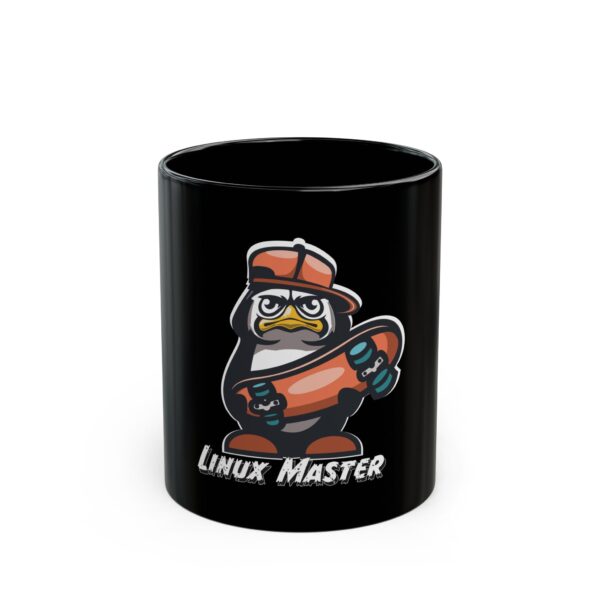
Ceramic Mug – Linux Master
$16.99 -

Keep Calm and Install Linux – T-Shirt
Price range: $16.43 through $22.73 -

Linux Is Strong – Water Bottle
$19.99
- Keep Calm and Install Linux T-Shirt — for the brave beginner
- Linux Master T-Shirt — for the distro hopper who’s seen things
- Hoodie “It works on my machine” — the universal developer motto, now wearable
- Kensington Tritan “Linux is Strong” — hydration for the command line warrior
—
Common Beginner Mistakes (And How to Avoid Them)
Mistake #1: Installing Everything from Source Newbies think “I have to compile everything from source to prove I’m a real Linux user.” No. Use your package manager. That’s what it’s for.
Mistake #2: Using Root for Everythingsudo exists for a reason. Running everything as root is like driving with the emergency brake on — it works, but you’re going to have a bad time.
Mistake #3: Ignoring Backups Linux is stable. But your hard drive doesn’t know that. Back up your data. Use rsync to an external drive or a cloud service.
Mistake #4: Asking for Help Before Googling Linux has been around for 30+ years. Whatever error message you’re staring at, someone has already posted the solution on Stack Overflow or a forum. Google it first.
Conclusion: Take the Leap
Installing Linux is one of those decisions that feels scary but is actually straightforward. The community is massive, the documentation is excellent, and the OS is free. Worst case scenario: you learn something valuable. Best case: you’ve found your forever operating system. And if you need a little confidence boost for the journey, there’s no shame in ordering a “Keep Calm and Install Linux” hoodie first. Motivation matters. Your turn: Which distro are you planning to try? Drop a comment below — or better yet, show off your new Linux setup on social media and tag us.

No comment yet, add your voice below!